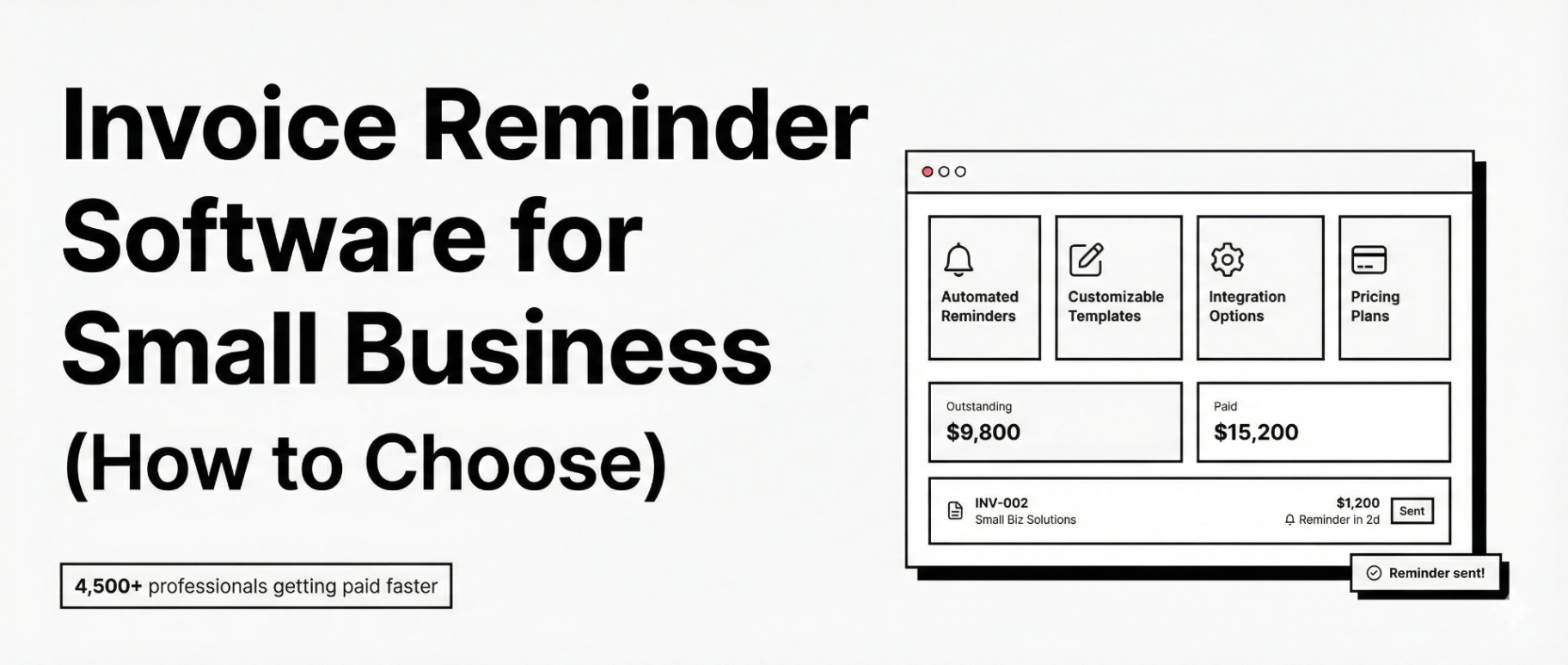
Invoice Reminder Software for Small Business (How to Choose)
Late invoices are rarely about bad clients. Most of the time they are about friction and forgetfulness:
- The invoice went to the wrong person.
- Accounts payable needed a PO number.
- Paying requires logging into something, finding bank details, or asking for the invoice again.
- You intended to follow up, then a deadline hit, and you forgot.
That is exactly what invoice reminder software for small business is supposed to fix. It sends polite, consistent follow-ups, on schedule, with payment links and context, so you get paid without turning into a collections department.
This guide helps you choose the right tool based on how you actually invoice today (freelancer, contractor, agency, e-commerce, small team). If you already know you want a tool focused specifically on follow-ups and a clean client experience, start here: invoice reminder software built for follow-ups.
Key takeaways
- “Invoice reminder software” usually means either (1) invoicing or accounting software with reminders, or (2) dedicated follow-up tools. Your best choice depends on where your invoices live.
- The features that matter most are scheduling (before/on/after due), customization, invoice attachment or portal, payment links, stop rules when paid, and basic reporting.
- Authoritative docs show reminders are configurable in major tools (QuickBooks timing controls, Zoho automated reminders, FreshBooks reminders and late fees).
- The fastest win is consistency: a simple cadence and templates, then automation.
- You do not need more software, you need fewer unpaid invoices. Buy based on workflow and constraints, not feature lists.
What “invoice reminder software” actually means
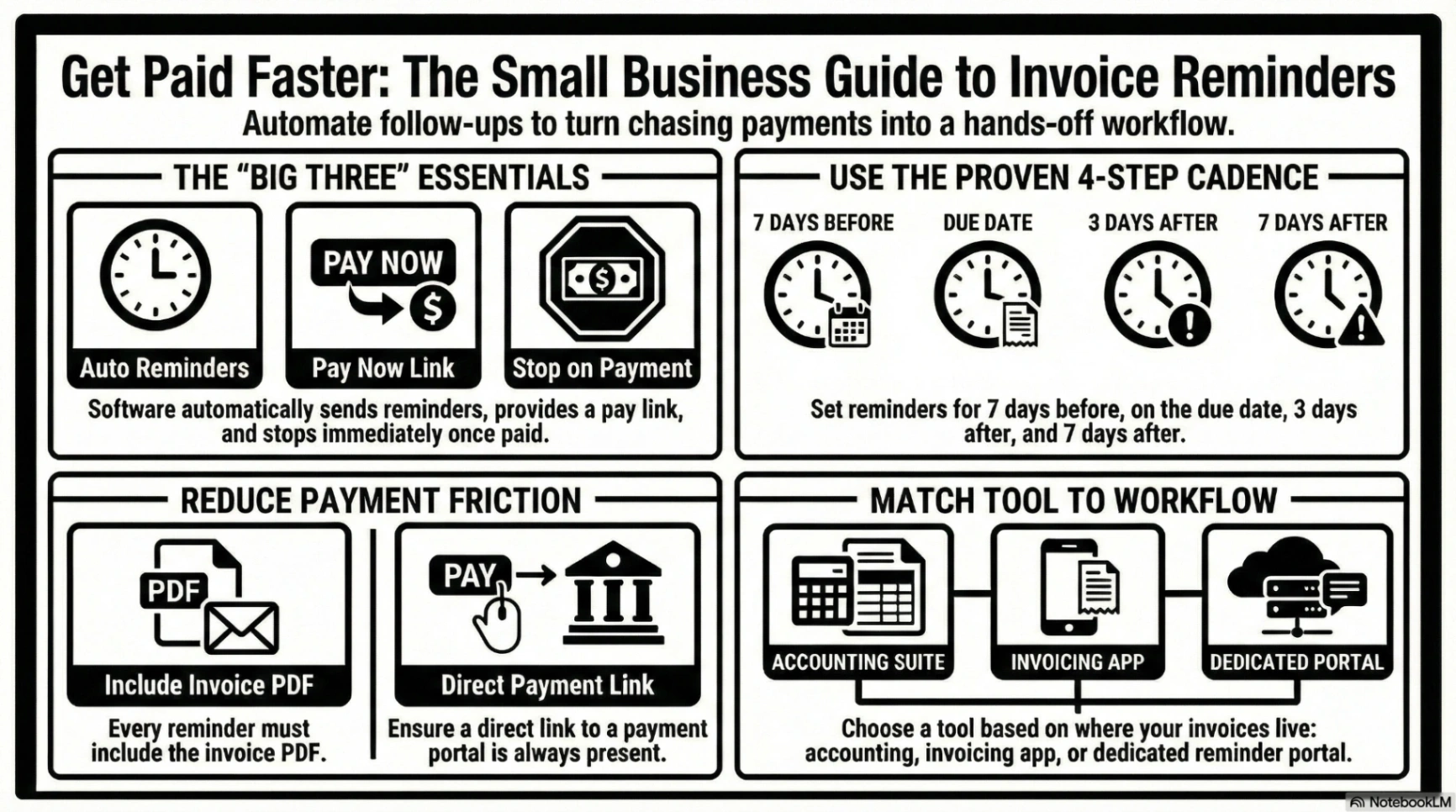
Invoice reminder software is a tool that automatically contacts customers about unpaid invoices based on dates and statuses (for example, reminders before the due date, on the due date, and after the due date). It should do three things well:
- Send reminders at the right time (your schedule, not random)
- Make paying easy (payment link, portal, or instructions)
- Stop when paid (no embarrassing “please pay” emails after payment)
Most “best invoicing software” lists include reminders as one feature among many, which is why the SERP often looks like invoicing software comparisons rather than reminder-only tools.
What it is not
- A generic email marketing tool blasting “collections sequences” to everyone
- A CRM drip campaign without invoice context
- A spreadsheet and calendar reminders (they work, until they don’t)
If you are searching this keyword, you probably want a small business invoicing workflow that feels professional and runs without heroics.
The 5 types of tools (and who each type fits)
The biggest mistake is shopping for “the best invoice reminder software” without deciding what category you are actually buying.
Here are the five common categories.
1) Accounting suites with invoice reminders
Examples: QuickBooks Online, Xero, Zoho Books (depending on region and plan)
Best for:
- businesses that want accounting and invoicing as the “source of truth”
- teams working with a bookkeeper
- businesses that need standard accounting reports
What you get:
- invoices, payments, and accounting in one place
- automated reminders in many tools, with timing controls
QuickBooks documentation, for example, shows you can enable automatic reminders and choose days before or after the due date, and it notes reminders can be scheduled up to a certain range before or after due date.
Trade-off:
- reminder customization can be limited in some systems, and workflows can be accounting-first, not client-experience-first.
2) Invoicing apps with built-in reminders
Examples: FreshBooks, Zoho Invoice, Wave (feature availability varies by plan)
Best for:
- freelancers, agencies, and service businesses that want fast invoicing and payment collection
- teams that do not want full accounting complexity
FreshBooks positions “automatic, customizable Payment Reminders” as a core invoicing feature and also supports automatic late fees.
Trade-off:
- you may still need accounting elsewhere, or you eventually outgrow reporting.
3) Payment-first tools (links, portal, checkout)
Examples: Square Invoices, Stripe Invoicing (depending on setup), payment processors with invoicing layers
Best for:
- businesses where payment friction is the main issue
- mobile-first businesses and point-of-sale workflows
Trade-off:
- reminders might exist, but can be less flexible than dedicated reminder systems.
4) AR collections tools (accounts receivable automation)
Examples: Bill.com-style workflows, collections platforms, AR automation tools
Best for:
- higher invoice volumes
- finance teams that want collections workflows, dispute management, dunning, and advanced reporting
Trade-off:
- often heavier, often priced for finance teams, not solo operators.
5) Dedicated reminder + portal tools
This is the “I already have invoices, I need follow-ups to run themselves” category.
Best for:
- small businesses that are tired of chasing
- agencies and freelancers who want polite reminders and a clean client experience
- anyone who wants reminders to be the primary feature, not a checkbox
If you want a reminder-first workflow, stop chasing payments with Can You Pay That is designed around polite follow-ups and a client portal experience.
Feature checklist (what matters, what is fluff)
You can evaluate invoice reminder software quickly by focusing on a few “make or break” capabilities.
1) Scheduling and triggers (the core)
Look for:
- reminders before due date (a heads-up)
- reminders on due date
- reminders after due date (overdue sequence)
- multiple steps, not just one overdue email
QuickBooks explicitly supports configuring reminders based on days before or after due date, and includes operational notes like attaching PDF copies if desired.
Zoho Books notes it supports both automatic and manual reminders and can enable many automated reminders.
Questions to ask:
- Can I set different schedules per client, project type, or terms?
- Can I pause reminders when a dispute is open?
- Can I resend invoice automatically with every reminder?
2) Template control and tone
You want reminders to sound like your business, not a debt collector.
Look for:
- editable subject lines and email body
- placeholders (invoice number, amount, due date)
- friendly tone defaults (assume good faith)
FreshBooks support documentation frames reminders and late fees as structured features tied to overdue invoices.
If you want proven reminder copy and subject lines, keep your software templates aligned with these internal guides:
3) Payment friction reducers (this is where money is)
Reminders work when paying is easy.
Look for:
- pay-now link (card, ACH, bank transfer instructions)
- a client portal where invoices can be viewed and paid
- automatic invoice attachment or one-click view
QuickBooks notes you can configure reminders and also configure whether PDFs are attached via delivery settings.
Many invoicing tools market “no awkward chasing” because reminders plus easy payment paths are the winning combo.
4) Stop rules and exceptions (avoid embarrassing mistakes)
You need:
- “stop reminders when paid”
- “do not remind these customers” or segmentation (if available)
- handling partial payments
- preventing reminders for invoices under dispute
Note: QuickBooks documentation mentions limitations, such as not being able to exclude specific customers in that reminder feature. That matters if you have VIP clients or special terms.
5) Audit trail and logging
Small businesses care about this more than they think.
Look for:
- sent history (what went out, when, to whom)
- bounce tracking and delivery issues
- internal notes (AP needs PO, promised pay date)
Logging is what turns reminders into a process instead of guesswork.
6) Reporting that actually changes decisions
You do not need a finance dashboard. You do need:
- overdue invoices list (by aging bucket)
- “time to paid” trend
- reminder effectiveness (paid after reminder X)
If the tool cannot show you what is overdue and for how long, it is not really helping AR.
7) Team workflow (if you are not solo)
For small teams:
- roles and permissions
- shared templates
- shared clients and invoice ownership
- notifications when replies come in
The selection framework (pick the right tool in 15 minutes)
Instead of comparing brands, run this decision framework.
Step 1: Where do your invoices live today?
Pick one:
- In an accounting system (QuickBooks, Xero, Zoho Books)
- In an invoicing app (FreshBooks, Zoho Invoice, Wave)
- In a processor or checkout flow (Square, Stripe)
- In spreadsheets or PDFs (manual)
If you are not changing where invoices live, choose a reminder solution that fits your current “source of truth”.
Step 2: What is your reminder problem, specifically?
Pick the pain that is most true:
- “I forget to follow up.”
- “I follow up, but it feels awkward.”
- “They say they did not receive the invoice.”
- “They need different information to pay.”
- “We have too many invoices to chase.”
If your problem is mainly “I forget,” most built-in reminder features might be enough.
If your problem is “awkward follow-up,” tone control, portal experience, and polite sequencing matter more.
Step 3: How complex are your terms?
- Due on receipt, Net-7, Net-14, Net-30
- deposits, milestones, retainers
- multiple currencies
- partial payments
More complexity usually pushes you toward either a more flexible invoicing system or a reminder-first workflow plus strong logging.
Step 4: How many invoices per month?
A simple guide:
- 1–10 invoices/month: you need speed and a good default cadence
- 10–50: you need templates, segmentation, and visibility
- 50+: you need automation, logging, and likely integrations
Step 5: Pricing reality check
Invoice reminder software pricing can hide in:
- per-user seats
- payment processing fees
- add-ons for reminders, late fees, portals, or automation
- limitations in free tiers (automation often restricted)
Do not optimize for the cheapest plan. Optimize for fewer overdue invoices.
Comparison table (shortlist view)
This table compares categories, not brands, because that is how you avoid buying the wrong thing.
Tool type | Best for | Strengths | Watch-outs |
|---|---|---|---|
Accounting suite with reminders | businesses wanting bookkeeping + invoicing | accounting reports, single source of truth | reminder flexibility may be limited, client experience can feel “accounting-first” (QuickBooks) |
Invoicing app with reminders | freelancers, agencies, service SMBs | fast invoicing, payment links, reminders and late fees in some tools (FreshBooks) | may need separate accounting, scaling and reporting varies |
Payment-first tool | POS, mobile-first, simple payment collection | payment friction reduction | reminder controls may be basic |
AR collections tool | higher volumes, finance teams | dispute workflows, collections, advanced reporting | cost and complexity |
Dedicated reminder + portal | “I want follow-ups to run themselves” | reminder-first workflow, polite follow-ups, portal experience (Billdu) | ensure it fits your invoice source and workflow |
Setup playbook (small business invoicing + reminders)
Most small businesses fail at reminders because setup is vague. Here is a practical step-by-step setup that works in almost any tool.
Step 1: Standardize your invoice fundamentals
Before automation, make sure every invoice includes:
- invoice number
- due date and terms
- clear payment instructions or pay link
- any required references (PO number, vendor ID)
This is “small business invoicing 101,” but it is also the foundation for reminders that do not trigger back-and-forth.
Step 2: Pick a default cadence (simple, effective)
If you do not want to overthink it, start with:
- T minus 7 days: friendly heads-up (for Net-14/Net-30)
- Due date: neutral reminder
- 3 days overdue: polite follow-up, ask for timing
- 7 days overdue: firmer follow-up, ask for confirmation
QuickBooks supports scheduling reminders based on days before or after due date.
Zoho supports automatic reminders and lets you configure many automated reminders.
FreshBooks supports reminders and late fees for overdue invoices.
If you want a detailed timing guide (Net terms, escalation patterns, examples), use best invoice reminder schedule.
Step 3: Generate your schedule for real dates
A cadence is nice, but you need exact send dates per invoice due date.
Use the invoice reminder schedule builder to turn due dates and terms into a concrete schedule with copy.
Step 4: Write templates once, then reuse forever
Keep templates:
- short
- factual
- polite
- easy to pay
Two internal resources to standardize language:
Step 5: Decide what the reminder includes
Set this intentionally:
- attach PDF invoice or not
- include pay link
- include bank details
- include “if already paid, ignore” line
QuickBooks documentation explicitly notes how to include PDF copies via delivery settings.
Step 6: Test the full workflow
Test on one invoice to yourself:
- does the email arrive (deliverability)?
- does the subject line look normal?
- do links work?
- does it stop after payment?
- does the invoice show the right amount and due date?
Step 7: Define exceptions
Write these rules down:
- VIP clients or special terms
- disputed invoices
- partial payments
- “AP needs PO” cases
If your tool cannot exclude customers or handle exceptions, you need a workaround (manual pause, tagging, or a dedicated reminder workflow).
Templates and sequences (without rewriting everything)
Software is only half the battle. The other half is “what the reminder says.”
Your reminders should follow a tone ladder
- Friendly heads-up: assume good faith
- Due date reminder: neutral, factual
- Overdue follow-up: polite, ask for timing
- Escalation: firm, still respectful, reference terms
The key is consistency, not aggression. Many tools market reminders as “awkward nudging” they handle for you, that framing works because it keeps tone professional.
What to automate first (highest ROI automations)
If you want the most impact with the least setup, automate in this order.
1) Automatic reminders
This is the core. Your system should check due dates and send reminders when criteria are met. QuickBooks describes this behavior clearly (it checks due dates and sends reminders automatically when criteria match).
2) “Make paying easy” elements
In every reminder:
- pay link or portal
- invoice attached or one-click view
- clear payment instructions
This is why many reminder features pitch “get paid faster,” because reminders plus frictionless payment is where results come from.
3) Logging and visibility
You need a place to see:
- what is overdue
- what reminders were sent
- what the customer replied
4) Stop rules when paid
Non-negotiable. It protects relationships.
If you want a deeper explanation of why automation works (and how to design it so it does not feel spammy), read automatic invoice reminders without chasing.
Common failure modes and fixes (the “why am I still unpaid?” section)
Failure mode 1: Reminders go to the wrong person
Symptoms:
- “I never saw this invoice”
- “Please send to accounts payable”
Fix:
- confirm billing email at onboarding
- send invoice to billing contact, CC project owner
- maintain one “billing contact” field per customer
Failure mode 2: Missing PO number or vendor requirements
Symptoms:
- “We can’t process without PO”
- “Please complete vendor onboarding”
Fix:
- add “PO required?” to your invoice checklist
- pause reminders until PO is added
- include PO in invoice subject line if needed
Failure mode 3: Deliverability, reminders land in spam
Symptoms:
- client swears they never received anything
- you see low reply rates
Fix:
- keep subject lines normal (“Invoice 1043 due Jan 30”)
- avoid spammy language
- send from a domain email, not a free mailbox
- keep templates short
If you need tone-safe copy, use polite reminder templates.
Failure mode 4: Your tool cannot handle exceptions
Symptoms:
- you need to exclude VIP customers
- you need different terms per customer
- you need dispute pauses
Fix:
- choose software with segmentation and pause controls
- or move reminders to a dedicated reminder workflow
QuickBooks documentation notes you cannot exclude specific customers from reminders in that feature, which is a real constraint for some businesses.
Failure mode 5: Partial payments and deductions create confusion
Symptoms:
- customer paid partially
- customer deducted fees without agreement
Fix:
- track partial payments clearly
- issue a revised invoice or credit note when appropriate
- pause reminders during dispute
Try before you buy (fastest way to get clarity)
If you are still unsure which category you need, do a quick test:
- Pick one invoice due next week
- Decide your reminder cadence
- Create the reminder copy once
- Run the workflow manually or in your current software for one cycle
If that is too much effort, that is your answer. You need automation.
Quick internal starting points:
- invoice reminder schedule builder (to get exact send dates and cadence)
Conclusion: choose the tool that matches your workflow
The best invoice reminder software for small business is the one that:
- matches where your invoices live
- sends reminders on your schedule
- makes paying easy
- stops when paid
- handles exceptions without drama
If you want a reminder-first workflow with polite follow-ups and a clean client experience, check Can You Pay That.
If you want help mapping your current invoicing setup to the right reminder workflow, contact Can You Pay That.
FAQ
What is invoice reminder software for small business?
Invoice reminder software automatically emails customers about upcoming or overdue invoices based on due dates and rules you set. The best tools also include payment links or portals and stop reminders when the invoice is paid.
Can QuickBooks send invoice reminders automatically?
Yes. QuickBooks documentation shows how to enable automatic invoice reminders and schedule them based on days before or after the due date.
How many reminders should I send, and when?
A simple default is a reminder before due date, on the due date, and a short overdue sequence (for example 3 and 7 days overdue). For a full timing playbook, use best invoice reminder schedule.
Do automatic reminders include the invoice PDF?
Some tools allow attaching PDFs. QuickBooks, for example, notes you can enable PDF attachment via delivery settings.
What features matter most for small business invoicing?
Scheduling and triggers, template customization, payment links or portal, stop rules when paid, and basic overdue reporting matter most.
Is it better to use an accounting tool or dedicated reminder software?
If your accounting system is your source of truth and you want everything in one place, built-in reminders can be enough. If your main pain is follow-up consistency, tone, and client experience, dedicated reminder workflows can fit better.
How do I keep reminders polite and professional?
Use short, factual copy, include invoice details and a payment path, and escalate gradually. Use polite reminder templates for copy that stays respectful.
How do I measure if reminders are working?
Track overdue rate, “time to paid,” and how often invoices are paid after a reminder step. If nothing improves, fix payment friction or exceptions first.